
AI connections for members
Connect your own training records to an AI application and control read-only access.
The Dashboard Member workspace includes a setup guide for connecting your own Accuro training data to a supported AI application. The connection is read-only and remains limited to your member data.
Open the setup guide
Sign in to Dashboard, select Member, and open Profile & settings → AI connections → View setup guide. Choose the application you use and follow the guide shown there. Application labels and availability can vary by account and workspace.
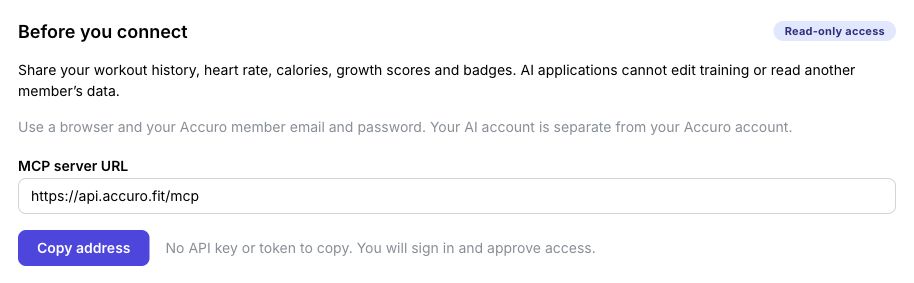
Connect and verify
- Read Before you connect to understand the training data the application can access.
- Use the setup guide to add AccuroFit in the chosen application's connection settings, using the displayed address and authentication instructions.
- Complete sign-in on the Accuro authorization page. Check the requesting application and requested access before approving it.
- Return to the application and confirm the connection. Enable it for the conversation if that interface requires it.
- Ask it to retrieve a small, specific part of your training history and compare the result with Dashboard.
For example: “Use Accuro to summarize my workouts from the last seven days. Show the number of workouts, recorded duration and calories, and state which values are missing.”
A successful setup includes an Accuro tool call and your own data, or an explicit empty result. A plausible answer generated without accessing Accuro does not verify the connection.
Understand the limits
The member connection can read available training information such as workout history, heart rate, calories, growth scores, and badges. It cannot edit training or read another member's records. An unavailable metric should remain unavailable; do not interpret a generated estimate as a recorded result.
Use normal Member App or Dashboard controls for bookings, profile edits, and other account changes. The connection does not replace those workflows.
Review or disconnect access
Return to the setup guide and choose Manage authorized applications. Review the application and disconnect it when you no longer want it to retrieve new data.
Disconnecting stops future access. It does not delete information already shared with the application. If authorization expires, reconnect through the normal sign-in flow rather than sharing credentials in chat.
If the application connects but returns no workouts, check the selected member account, requested dates, and workout synchronization. A valid empty result can simply mean there are no matching records.