
Rewards
Earn eligible workout points, redeem a Location reward, and complete fulfillment in Dashboard.
Rewards connects eligible club training to points and a reward catalog. Members use Member App or Dashboard to view balances and request items; club staff maintain the catalog and fulfill requests.
Understand the scope
Each Location has its own member balances, reward items, stock, and redemptions. Select the correct Location before checking points or requesting an item. The club can choose a member-facing program name, so your page may show that name below Rewards.
| Stage | Member | Club staff in Dashboard |
|---|---|---|
| Prepare | Check whether Rewards is available for your membership. | Configure the program and Location catalog. |
| Earn | Complete eligible club workouts and wait for results. | Review workout awards or exceptions when needed. |
| Request | Select an item and confirm its point cost. | Review the pending redemption and arrange delivery. |
| Complete | Receive the item and check the updated status. | Mark completed after fulfillment and record a reference or note. |
Set up the catalog in Dashboard
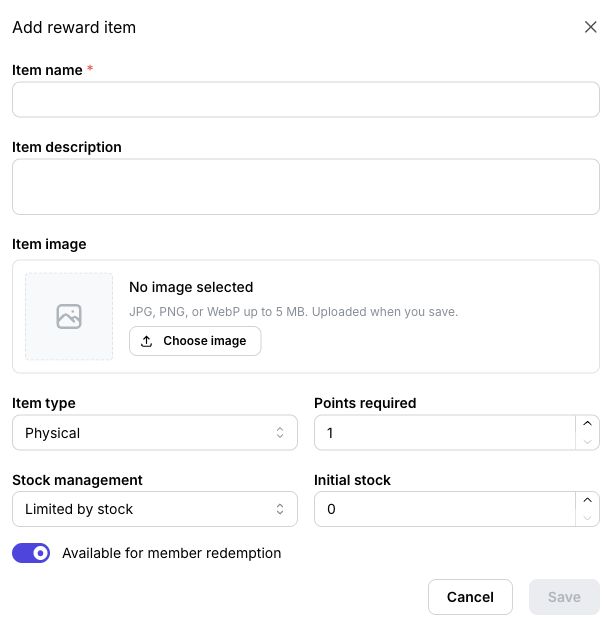
Club Admins can manage the program's status and name where available. Location staff work within their assigned scope. Open Rewards, choose the Location, then use Reward items to add an item.
- Enter a recognizable item name and description, including how and where it can be collected or used.
- Add an image if useful. Choose a physical or virtual item and its points cost.
- Choose unlimited stock or enter the initial quantity for a limited item.
- Check whether the item should be available for member redemption, save, and review it in the list.
Keep stock changes separate from member point adjustments and record a meaningful reason for each. Disabling or suspending the program pauses new earning and redemption; existing history remains available. Contact Accuro Support if the feature itself is unavailable.
Check points as a member
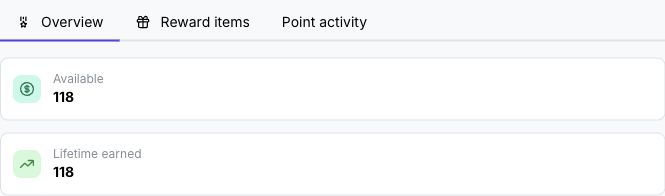
In Member App, open Rewards from Me. In Dashboard, use your Member role and open Rewards. Choose the Location, then review Overview, Reward items, and Point activity.
| Balance | Meaning |
|---|---|
| Available | Points currently available to spend. |
| Reserved | Points held by pending redemption requests. |
| Pending debit | A correction that still needs to be settled; it can prevent new redemption. |
| Lifetime earned / redeemed | Historical totals, not the amount currently available. |
Points require an eligible workout and an active program at the relevant workout time. Source, minimum duration, and available effort data can affect eligibility. A saved workout or an IQ score alone does not guarantee an award. Personal workouts do not earn reward points.
Request a reward
- Open Reward items for the intended Location.
- Read the description, required points, and availability. Check your available balance.
- Choose the redemption action and review the confirmation before submitting.
- Check the resulting redemption status and follow the club's collection instructions.
A pending request reserves points; it does not mean the club has handed over the item. If delivery of your request is uncertain, refresh its status or retry the same pending action as instructed instead of creating repeated requests.
Fulfill a request in Dashboard
Open Redemptions, select the Location and relevant status, and inspect the request. Confirm the member and item before arranging delivery. Use Mark complete after the item or service has actually been provided; include the available fulfillment reference or member-visible note.
| Status or action | What happens |
|---|---|
| Pending | Points are reserved while the request awaits handling. |
| Fulfilled | The reserved points are spent. |
| Rejected, cancelled, or expired | The pending hold is released. |
| Reversed | A completed redemption is undone and points are returned; stock restoration depends on the selected action. |
Use only the actions offered for the current status. A member cancellation, when offered, is for a pending request. Completed fulfillment needs staff review and the appropriate reversal action.
Resolve missing points or stock
Members should check the Location, Point activity, and the source workout before contacting their club. Staff can inspect Member points, Workout awards, and Operations review. Check balances detects exceptions; running it does not repair balances automatically. Investigate the underlying request or adjustment and record a resolution note when marking an issue resolved.
For workout uploads and incomplete metrics, continue with workout results. For a separate competition or prize, see Challenges.