
Course templates
Prepare reusable class defaults and use them in the schedule and on Station.
A course template describes a type of training, such as a cycling or circuit session. It supplies defaults for new classes. It does not publish a class or book a member by itself.
Create a template in Dashboard
- Select the intended Location and open Course templates.
- Choose Add course template and enter a recognizable name, category, and description.
- Choose an emoji and color so staff and members can identify the course.
- Set the duration and default booking limit. Select a default coach and classroom when available.
- Save, then check the template in the Location's list.
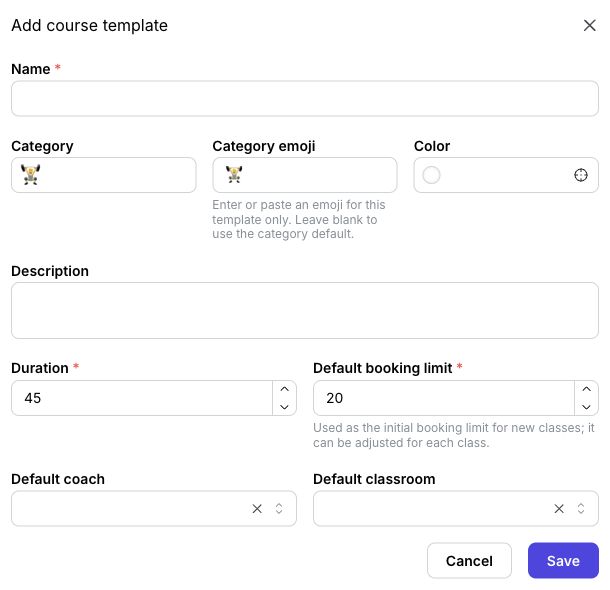
The booking limit is an initial value and can be adjusted for an individual class. Coach and classroom choices depend on resources available to that Location. Maintain those resources and working hours before scheduling.
Follow the template into a real class
| Step | Where | Action |
|---|---|---|
| Describe the course | Dashboard · Course templates | Save its identity and defaults. |
| Schedule it | Dashboard · Class Scheduler | Select the template, review date, time, resources, and capacity, then publish. |
| Book it | Member App or Dashboard · Member | Find the published class and confirm a place. |
| Run it | Station | Prepare the intended scheduled class, check in members, and start training. |
| Review it | Member App or Dashboard | Wait for uploads, then open the workout or class results. |
Continue with Class Scheduler for the complete booking and check-in flow, and Station training for live recording and upload.
Maintain your list
Edit a template to update future defaults, or copy it when a new course needs a separate identity. Check existing scheduled classes independently instead of assuming a template edit rewrites their saved settings.
Deactivate a template when staff should stop selecting it for new classes. Use Include inactive to find older templates when needed. Deactivating a template is not the same as cancelling a published class; make schedule changes through the class controls so member bookings receive the appropriate update.