
Challenges
Create a club challenge, join as a member, and follow eligible workouts through to the final results.
Challenges give members a shared training goal. Club staff organize individual or team participation in Dashboard; members discover challenges and follow their progress in Member App or their Dashboard Member workspace.
Before you start
Use a membership with access to the challenge's club and eligible Locations. Staff need permission to manage challenges in the selected scope. If the feature is unavailable, ask your club or Accuro Support about access.
| Stage | Who and where | Expected outcome |
|---|---|---|
| Prepare | Authorized staff · Dashboard | Rules, eligibility, dates, and any prizes are saved. |
| Enroll | Member · Member App or Dashboard; staff for teams | An individual enrollment or locked team roster is accepted. |
| Train | Member · eligible club workouts | Uploaded and processed workouts contribute under the challenge rules. |
| Follow | Member · Member App or Dashboard | Progress and the current leaderboard show accepted contributions. |
| Finish | Staff and members · Dashboard or Member App | The completed challenge shows its final results and any awards. |
Configure a challenge in Dashboard
- Open Challenges in the club workspace. Check the Location and status filters before creating a challenge.
- Enter a name and a clear description. Explain the goal, eligible training, and how members receive any prize. Preview the description and add a cover image if needed.
- Choose Eligibility and Entry type. An individual challenge ranks members; a team challenge uses team rosters.
- Set the Scoring metric: workout count, workout duration, calories, or IQ points. Choose a cumulative ranking or a race to a target, and enter the target when required.
- Check the challenge time zone, enrollment opening, start, end, and enrollment closing rule. These times determine when members can join and when training counts.
- Review winning places and any prize descriptions. Save the draft, review its detail page, then publish when ready.
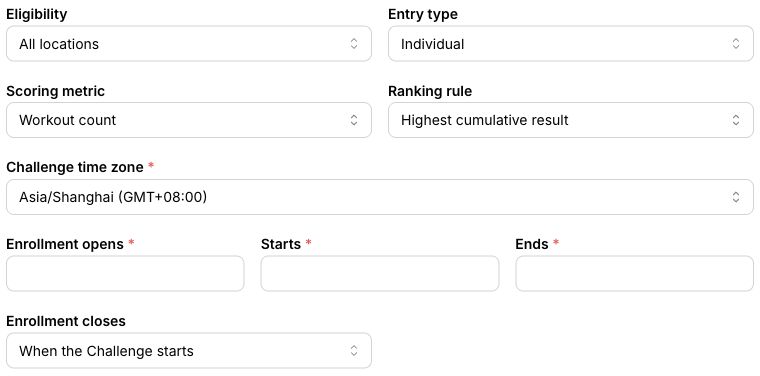
Publishing makes the challenge follow its configured schedule; it does not make every draft active immediately. Check the displayed status and dates. Use Start challenge only when that action is offered for the challenge's current state.
Prepare a team entry
In Dashboard, open Challenges → Teams and create a team. Add eligible members and check the required roster size. A team challenge requires a fixed roster of 2–20 members, as specified in its rules.
Review the name and members before Lock roster. Locking prevents further name and roster edits. Enroll the eligible locked team in the challenge and verify that the entry appears. Members should check their team participation rather than attempting to join an individual entry for the same team event.
A locked team can be reused where eligible. Archiving a team prevents new participation while preserving its history; it does not erase past results.
Discover and join as a member
- In Member App, open Challenges. In Dashboard, select your Member role and open Challenges → Discover.
- Open a challenge and read its eligibility, dates and time zone, scoring metric, ranking rule, minimum workout requirements, and any prizes.
- For an individual event, choose the join action while enrollment is open. Complete a required nickname if prompted.
- Check My in Member App or My challenges in Dashboard for your accepted entry. For a team event, ask your club to arrange the roster and enrollment.
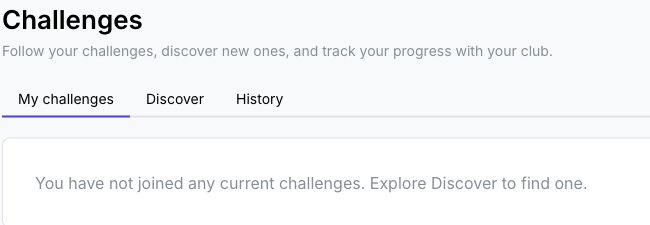
A challenge may be visible before enrollment opens. If joining is unavailable, check its status, enrollment deadline, Location eligibility, and whether it requires a team. Discover and History serve different purposes: a completed event is not a new opportunity to enroll.
Train and follow your progress
Complete eligible club workouts during the challenge period. Members can book a class, train through Station or the supported cloud workout flow, and then review their workout results. Results must upload and finish processing before challenge progress can reflect them.
Reopen the challenge to check your contribution, position, and leaderboard. The live ranking can change as other results arrive. A workout appearing in Activity does not by itself mean it satisfies the challenge's duration, source, date, or Location rules. Personal workouts do not contribute.
Withdraw or review final results
Read the confirmation carefully before withdrawing. Withdrawal cannot be undone, the same member or team cannot enroll again in that challenge, and the withdrawn entry is excluded from rankings and awards. Ask club staff to handle team changes through the available team participation actions.
After completion, open History and select the challenge to review results and awards. A cancelled challenge does not issue awards. Challenge prizes and Rewards points are separate features; follow the prize instructions rather than assuming a leaderboard position creates a points redemption.
When progress looks wrong
First check the workout's result status and the challenge rules. Send your club the challenge name, workout date, Location, and the message shown. Authorized staff can inspect participation and use Resync results when eligible source results have changed. Resync rebuilds progress from eligible workouts; it is not a manual score bonus and can change previously completed rankings.