
Messaging
Contact your club from Member App and handle conversations in the Dashboard shared inbox.
Messaging connects a member with their club at a selected Location. Members write in Member App; authorized club staff reply from Member messaging in Dashboard. The conversation belongs to the club's shared inbox, so a reply may come from a different authorized staff member.
Start a conversation in Member App
- Open Me → Contact club.
- Select the Location you want to contact. Only eligible memberships and available messaging Locations are shown.
- Open the conversation, enter a clear message, and send it. Include the class or workout date if it helps staff identify the question.
- Stay in the conversation to check the send status and read replies. Staff names and roles help identify who replied.
The Dashboard Member workspace does not currently provide the member messaging inbox. Use Member App to contact the club. If Contact club is missing, check your membership and ask the club whether messaging is available.
Send a photo, video, or workout
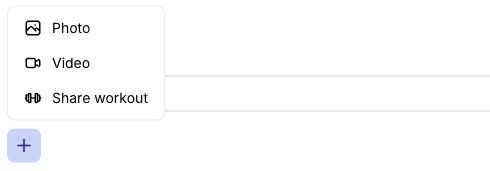
Use the attachment control and review your selection before sending. Member App accepts up to nine photos of up to 10 MB each, or one video of up to 100 MB. Follow the picker for supported formats and permissions.
To discuss training, choose Share workout, select a record, review its summary, and send. Eligible choices include your workouts from the conversation's Location and your personal workouts from the same club. Load earlier records if the workout is not in the first set.
A shared workout card contains a summary. It does not send every heart-rate sample or grant new access to the full record. Staff can open further details only when their existing access permits it. Share media relevant to your question and check that unrelated people or private details are not visible.
Reply from Dashboard
- Select the club workspace and open Member messaging.
- Use the Location filter and conversation list to find the member's thread. Check its context before replying.
- Read the recent messages and any attachment or workout card, then enter a reply.
- Use the attachment menu for a photo, video, or workout where offered. Check the preview and send status.
- If the inbox offers Needs reply and Mark handled, use them to track staff follow-up after responding.
Keep a member-facing reply focused on the question. The shared inbox allows the club team to continue the same conversation without asking the member to start again with another staff account.
Check delivery and retry safely
Text messages can contain up to 4,000 characters. If the app cannot confirm delivery, check the connection and retry the same message or shared workout as instructed. Creating a new copy can cause duplicates. A rate-limit message means you should wait before trying again.
Attachment preparation, upload, and final delivery are separate stages. Wait for the final message status; an upload reaching 100% alone is not confirmation that the message has been delivered. If a photo or video fails, check the format, size, and connection.
When messaging becomes unavailable for the club or membership, existing history may remain readable while sending is disabled. Staff should contact Accuro Support about feature availability. For local storage cleanup, see notifications and health sync; clearing cached media does not delete the conversation.