
Workout results
Find your training history and understand result status, metrics, and summary emails.
Open Activity in Member App to review your workouts. Check the workout date, Location, and class name where available before opening a result. Scheduled classes, direct workouts, and personal workouts can have different sources and available measurements.
Open a result in Dashboard
In Dashboard, use your Member role and open Workout history. Find the workout by date and name, then select its Details icon to open Workout details. For help finding the Member workspace, see Dashboard for Members.
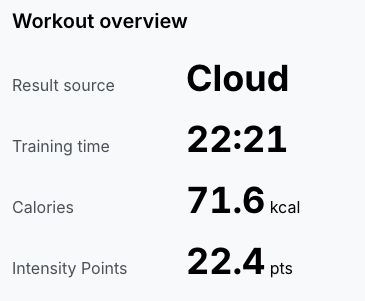
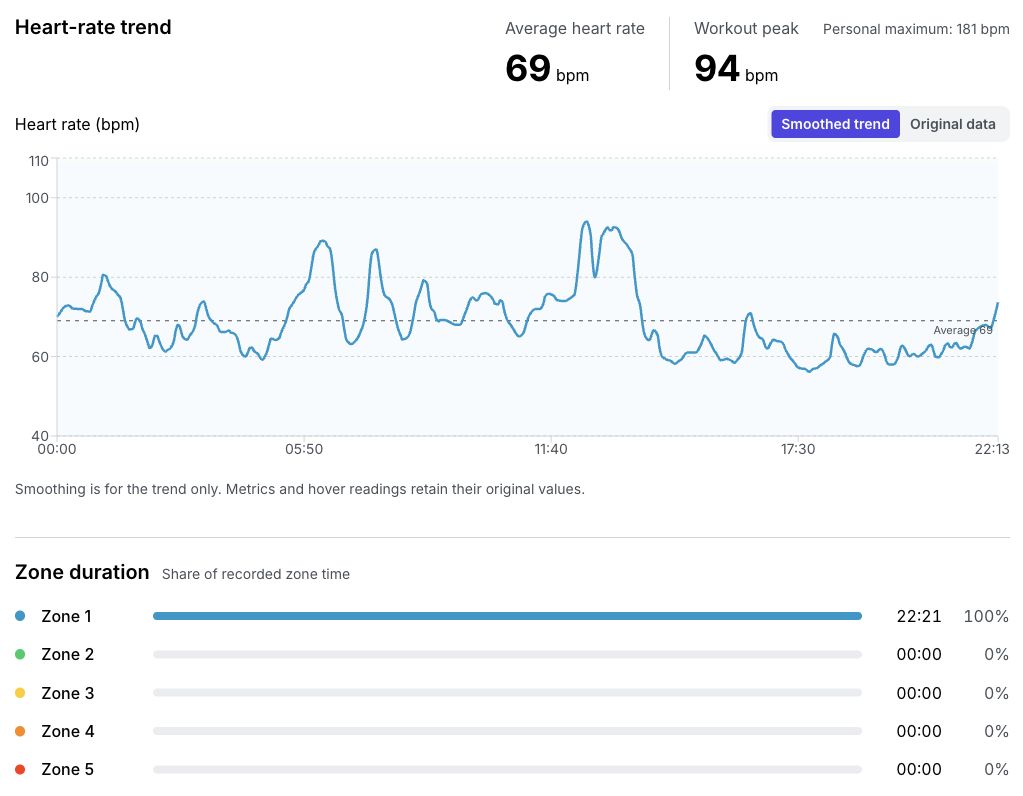
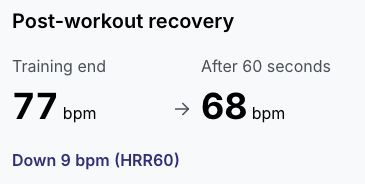
The screenshots below show the Dashboard Member view, cropped to remove identifying details. Values illustrate how to read a result; they are not training targets. Select an image to view it at full size.
From booking to a workout result
A class booking reserves a place; it does not record exercise. A waiting-list entry, cancellation, no-show, or check-in alone is not a completed workout result.
For a Station workout, confirm that training actually started and that your member identity and device were included. After finishing, allow the Station to upload and the service to process the result. If an expected result is still being prepared, Activity can show it as Processing.
Read the result status
| Status | Meaning | Next step |
|---|---|---|
| Processing | The result is still being prepared. | Allow upload and processing to finish, then refresh. If it persists, ask staff to check the session. |
| Ready | The workout result is available. | Open the details and review the measurements. |
| Limited | A result exists, but part of it is missing or incomplete. | Open the details and read the explanation beside the unavailable metric. |
| Unavailable | A workout result could not be produced. | Contact the club with the workout time and Location if a result was expected. |
A partial result does not mean every measurement is invalid. Likewise, one member's missing data does not determine another member's result. Result availability depends on the data recorded for that member.
Understand the measurements
| Measurement | What to look for |
|---|---|
| Duration | The duration recorded for the workout, which can differ from the scheduled class length. |
| Average HR / Peak HR | The average and highest recorded heart rate when sufficient data is available. |
| Heart-rate chart and zones | Recorded heart-rate changes and time in zones. Gaps or unavailable values mean that data is missing. |
| Calories | The workout's calculated calorie value when available. |
| Intensity Points | Points recorded for the workout. This is separate from the Effort score. |
| Effort | The calculated workout score, or an explanation when it could not be produced. Short workouts or insufficient valid heart-rate coverage can prevent calculation. |
| Recovery | Heart rate at training end and after 60 seconds, when recovery was captured. |
Missing is different from zero
An unavailable Effort score, empty chart, or missing recovery value is not a zero score. Use the status and explanation shown rather than treating absent data as poor performance.
Recovery compares training-end heart rate with the reading after 60 seconds. It is not calculated from the highest heart rate reached earlier in the workout. Some workouts do not require recovery; others may fail to capture it.
Find an older workout
Make sure you are signed in to the account and club used for training. Older activity belongs to the member's training history; losing access to a Location does not by itself erase an owned workout. The recorded Location and timezone describe where the training happened.
If a result is missing, check the date and account first, then ask the club to confirm the member included in the original session. Creating a new booking or repeating check-in will not recreate missing workout data.
Workout-summary emails
A summary email depends on an eligible workout result, completed processing, your email settings, and club configuration. A booking confirmation and a workout summary describe different events.
If the email is missing:
- Check whether the workout has finished processing in Activity.
- Check your account's email address and workout-summary email preference.
- Check spam folders and any filtering rules.
- Ask staff to verify the session and email delivery if the result is ready but no expected email arrives.
Summary comments may discuss Effort, Consistency, or Progress when enough training history is available. Early workouts may not have enough evidence for a progress comparison. Club email templates can differ, so an email may not show exactly the same sections as Member App.
Report a result problem
Share the workout date and time, timezone, Location, visible result status, and the device you used with your club's authorized support contact. Mention whether the issue affects the whole result or one measurement. Redact unrelated personal details from screenshots and never share your password.
For the next workout, check your heart-rate device before training starts. For booking and check-in questions, see Class Scheduler.