
Notifications & health sync
Manage Member App alerts, optional emails, health exports, and cached chat media.
These settings belong to the member. Open Me in Member App for notification, device/data-source, and storage settings. Optional email preferences are also available in the Dashboard Member workspace.
Check notifications on your phone
Open Notifications and check system notification access first. If access is off, use Go to system settings to review the phone's permission. App preferences cannot override a blocked system permission.
Use the available Class reminders preference for reminders before booked classes. Other alert controls may be unavailable in your app version; follow the availability message rather than assuming every displayed option can be enabled. Check the actual booking in Member App or Dashboard if a notification is delayed.
Where supported, Lock screen workout details controls whether the class name, exact heart rate, zone, and workout statistics appear outside the app. Keeping details private shows a generic workout status. Review this separately from permission to receive notifications.
Choose optional emails
In Member App, open Notifications → Email. In Dashboard with the Member role, open Profile & settings → Email notifications. Choose post-workout summaries and progress/engagement emails, then wait for the save confirmation.
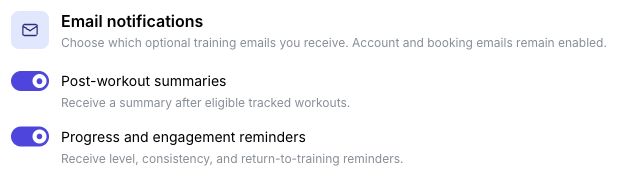
These are account preferences, while system notification permission is specific to the device. Enabling a workout email does not finish a pending upload or create missing workout results.
Export completed workouts to your health app
- In Member App, open Me → Devices & data sources → Health data sync.
- Choose the available platform connection: Apple Health or Health Connect.
- Read the permission request and allow the workout export access you want to grant.
- After a workout completes, check the sync status. Use Sync now when offered to retry pending exports.
- Open the health app to confirm the completed workout is present.
This flow copies completed AccuroFit workouts to the connected health app. A failed health export leaves the AccuroFit workout unchanged. Check that the source workout exists and is complete before troubleshooting the destination.
Turning sync off stops future exports. Workouts already copied to Apple Health or Health Connect remain there and must be managed in that app. The health connection is not a way to book classes or automatically make outside workouts count toward Accuro club programs.
Clear cached chat media
Open Storage → Chat media cache to review local usage. Clear chat cache stops media downloads and removes cached photos, thumbnails, and videos; media can download again when needed.
The cleanup keeps chat history, cloud attachments, unsent attachments, and unsynced workouts. It is different from removing the app or signing out, which can put unsynced local workout data at risk. Finish personal workout synchronization before those actions.
For account access and deletion, see Sign-in & security.