
Reports & audit log
Choose an operational report, interpret its scope, and review recorded changes.
Reports help authorized club staff understand activity across their permitted Locations. The audit log helps explain who changed a setting or record. Members should use their own Workout results and Growth views.
Choose a report
Open Reports in the club workspace. Select a report from the catalog, then review the Location scope and applied date range before interpreting any numbers. Club-wide overview and Location comparison reports require the corresponding Club Admin access.
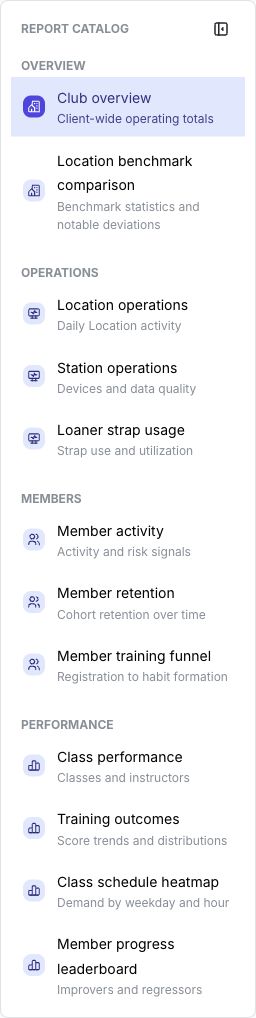
| Report | Use it to review |
|---|---|
| Club overview | Club-wide operating totals. |
| Location benchmark comparison | Differences across eligible Locations. |
| Location operations | Daily activity at a venue. |
| Station operations | Station activity and data quality. |
| Loaner strap usage | Strap use and utilization. |
| Member activity | Participation and activity signals. |
| Member retention | Return patterns for member cohorts. |
| Member training funnel | The path from registration to repeated training. |
| Class performance | Classes and instructors. |
| Training outcomes | Score trends and distributions. |
| Class schedule heatmap | Demand by weekday and hour. |
| Member progress leaderboard | Changes in recorded member progress. |
Apply filters and interpret the result
Set Start date and End date, plus Location and any report-specific controls. Retention periods, inactivity windows, conversion windows, and minimum workout counts answer different questions; keep them consistent when comparing results.
Read the date range actually applied by the report, including its default when you leave a filter empty. Heatmap times follow the report's stated time-zone basis. Missing data is not zero, and an incomplete session can change totals when later results arrive.
For an unexpected figure, open the relevant session or member record to check the underlying activity. Use an available export only after verifying its filters, and remove member identifiers before sharing outside the authorized club team.
Review the audit log
Open Audit Log under Management. Narrow the list by keyword, Location, category, action, or date range. Open an event and review its actor, affected record, scope, reason, and recorded changes.
The log is a record of actions, not an undo control. If a setting needs correction, return to its normal management page and make an authorized change there. Use the event context when asking Support to investigate, without copying unrelated personal details.
Complete the operational review
Start with a report to identify the pattern, inspect the relevant session or member record, and use the audit log when a configuration or administrative change may explain it. After correcting the underlying issue, rerun the same report with the same filters so the comparison remains meaningful.