
Club setup, Locations & team
Organize your venues, staff access, and club settings before running classes.
Club setup connects each venue, its staff, and its Stations. Club Admins manage the club within their available permissions; Location Admins work in their assigned Locations. Members use the separate Member account guides.
Create or review a Location
Open Locations in the club workspace. For a new venue, use Add Location, enter its name and address, select the correct time zone, and save. Use a two-letter country code in the country field.
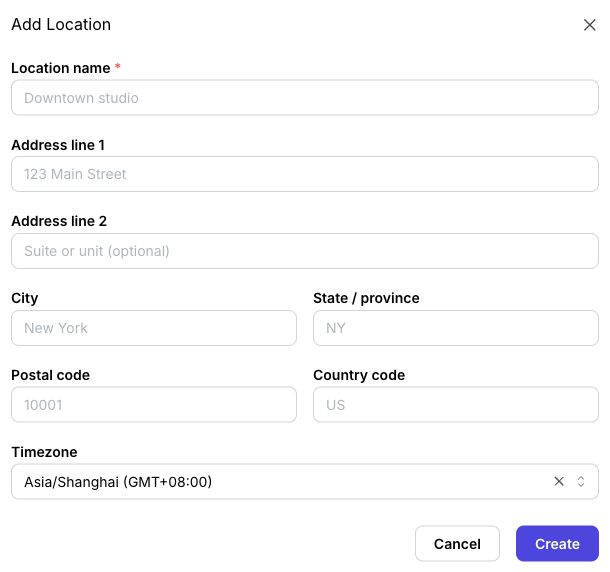
Review the Location before assigning members, staff, and Stations. A member's Location access determines which classes and Location-specific features they can use. Editing a member's profile does not change that access; use Member management.
Changing a Location's details deserves a review of upcoming schedules and assigned resources. Deletion is not a normal way to rename or retire a venue. Resolve assigned users and Stations first, and read the irreversible-action warning before proceeding.
Assign your team and Stations
Open the club's team or account-management area. Use the Club Admins, Location Admins, Stations, and Coaches sections for the relevant type of account. Available creation and editing actions depend on your active role.
Select only the Locations the person or Station needs. An account's role and Location assignments determine access; a coach selected for a class is not automatically granted broader administration rights.
Review changes before saving and give a clear reason when asked. Disabling an account revokes active sessions, so coordinate changes with affected staff and avoid interrupting a running class. Ask Accuro Support when an account or assignment cannot be managed with your available actions.
Review club settings
In Settings, check the available branding and training defaults. Location Admins may have a read-only view of club settings.
| Setting | What to check |
|---|---|
| Club Code | The code members use to join. Review the change warning and frequency restriction before updating it. |
| Dashboard identifier | The club's browser-facing identifier; it is separate from the Club Code. |
| Session logo | Use the requested image dimensions and preview it on the intended display. |
| Heart-rate zones | Review the ordered thresholds and colors before applying changes that affect training displays. |
| Return loaners after session | Decide whether used loaners should return automatically after session results upload. |
Members may need updated joining instructions after a Club Code change. Do not confuse changing branding with enabling a paid feature. Contact Accuro Support about access to unavailable features or paid skins.
Complete the setup across products
- In Dashboard, review Locations and staff/Station assignments.
- Add course templates, coaches, classrooms, and working hours, then publish classes.
- On Station, verify the assigned Location, receivers, external display, and training settings.
- In Member App or the Dashboard Member workspace, verify that an eligible member can find the class and use the correct Location.
- After a session, use Sessions & attendance and Reports to check the operational result.