
Station skins
Choose and synchronize your Station training display.
Club Admins, Location Admins, and Station operators can use this guide to preview designs and switch the training display for a Station. Six skins are free. To use the paid Dot or Hitsona skin, contact Accuro Support.
You can change the saved choice whenever needed. The new skin applies to the next training session; a session already in progress keeps its current skin.
| Access | Dashboard name | iPad name |
|---|---|---|
| Free | Next | Default |
| Free | White | White |
| Free | Black | Black |
| Free | Gradient | Gradient |
| Free | Speedometer #1 | Speedometer #1 |
| Free | Speedometer #2 | Speedometer #2 |
| Paid license | Dot | Dot |
| Paid license | Hitsona | Hitsona |
Next and Default are the same skin. Their labels differ between Dashboard and some iPad versions.
For a free skin, go directly to Dashboard switching or iPad switching. For Dot or Hitsona, contact Accuro Support.
Skin changes affect presentation, not heart-rate collection, scoring, or session recording.
Skin previews
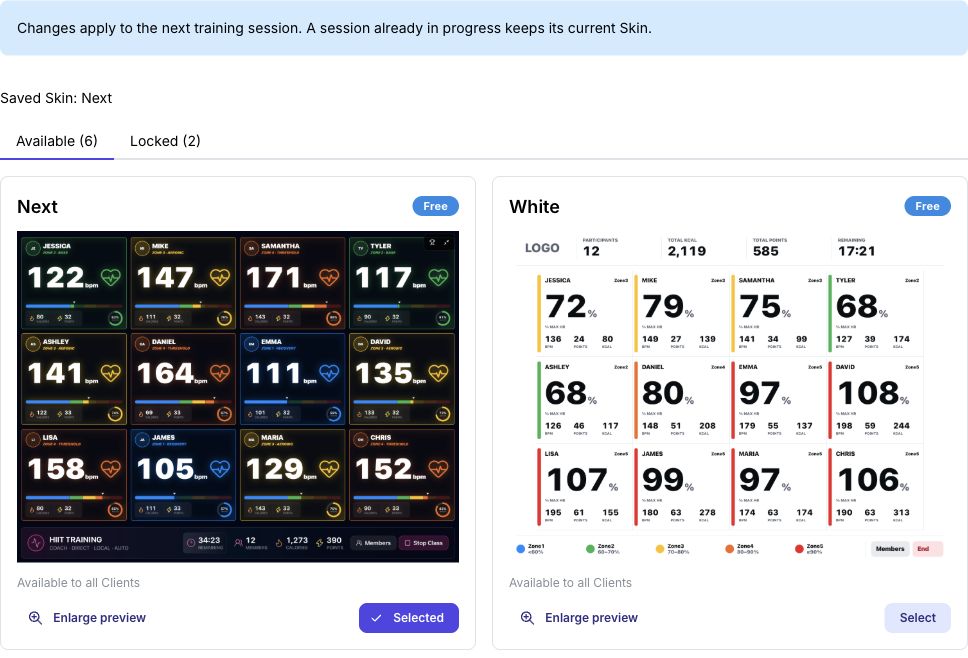
Compare all eight designs below. Select an image to view it at full size in a new tab. These are the preview images shown in Dashboard; the layout on your Station can vary with the app version, display size, and number of participants.
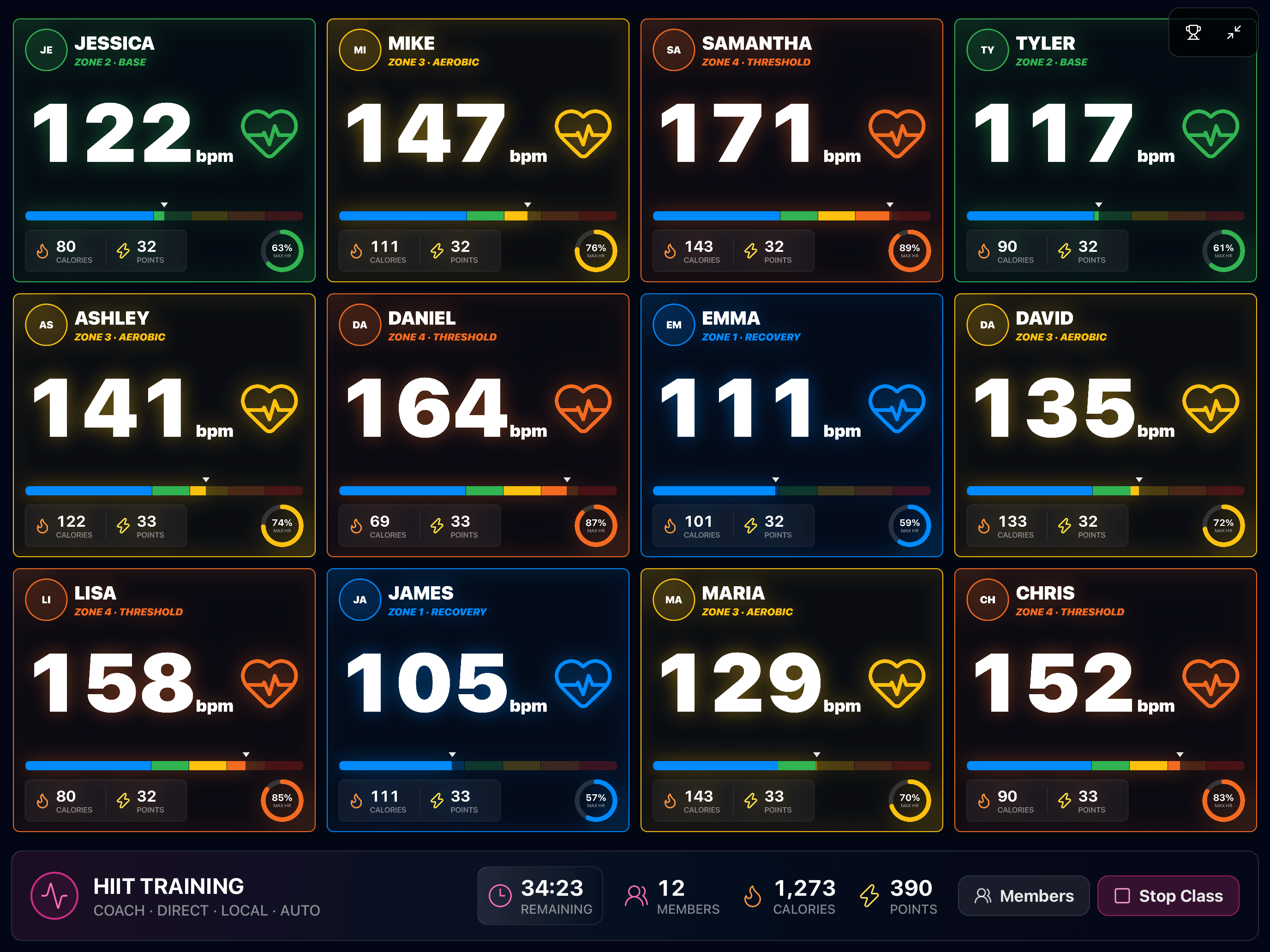
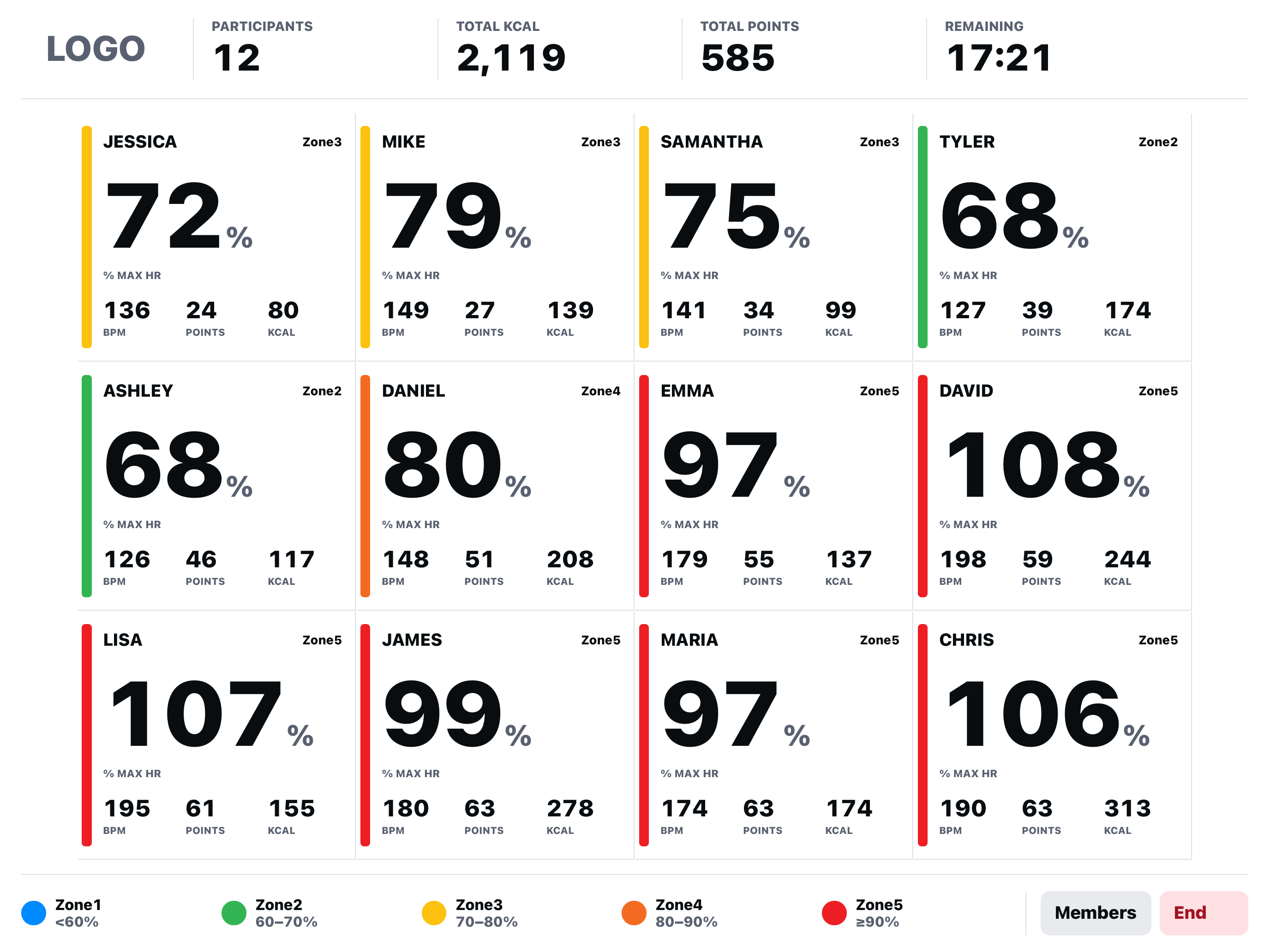
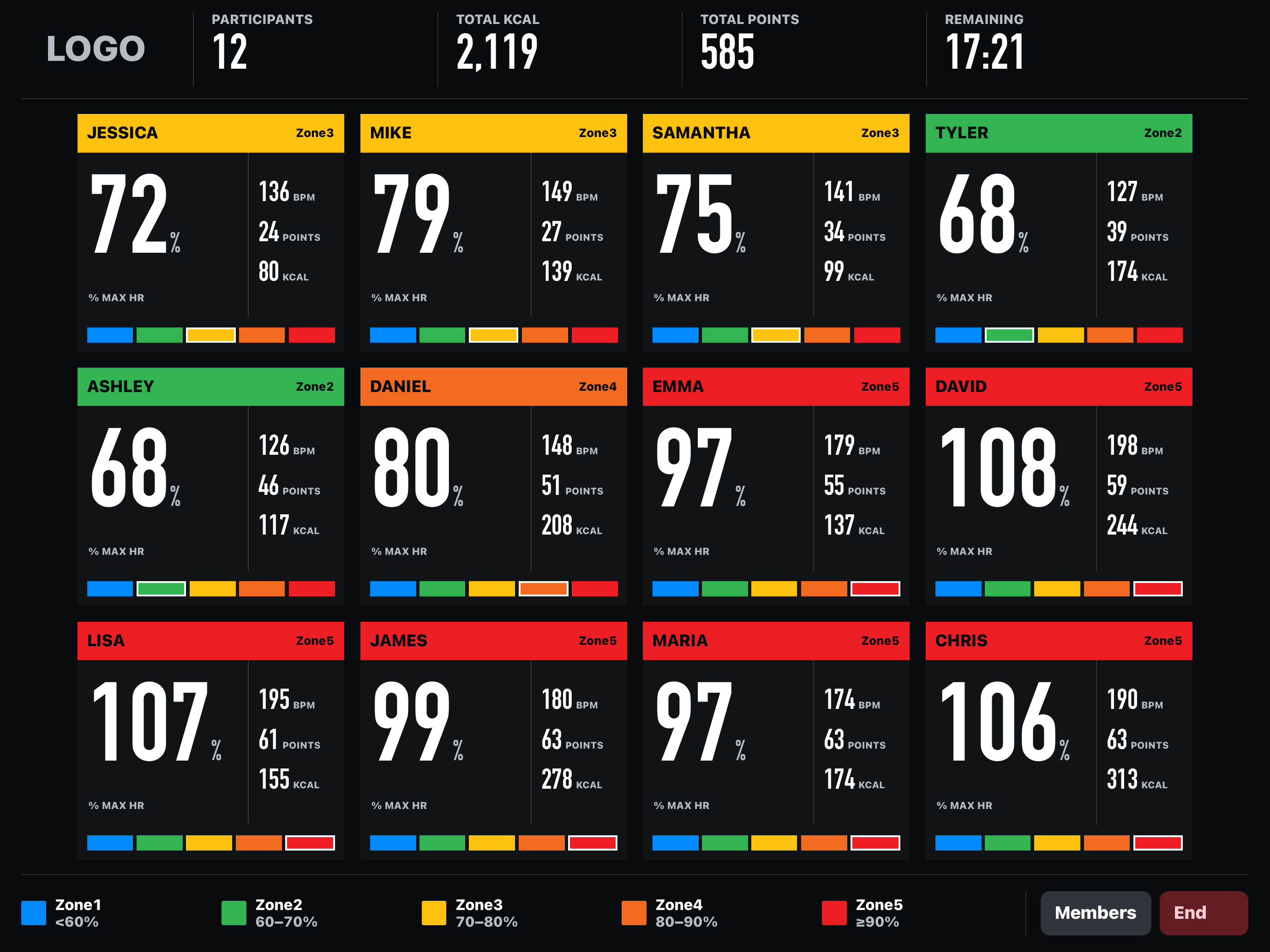
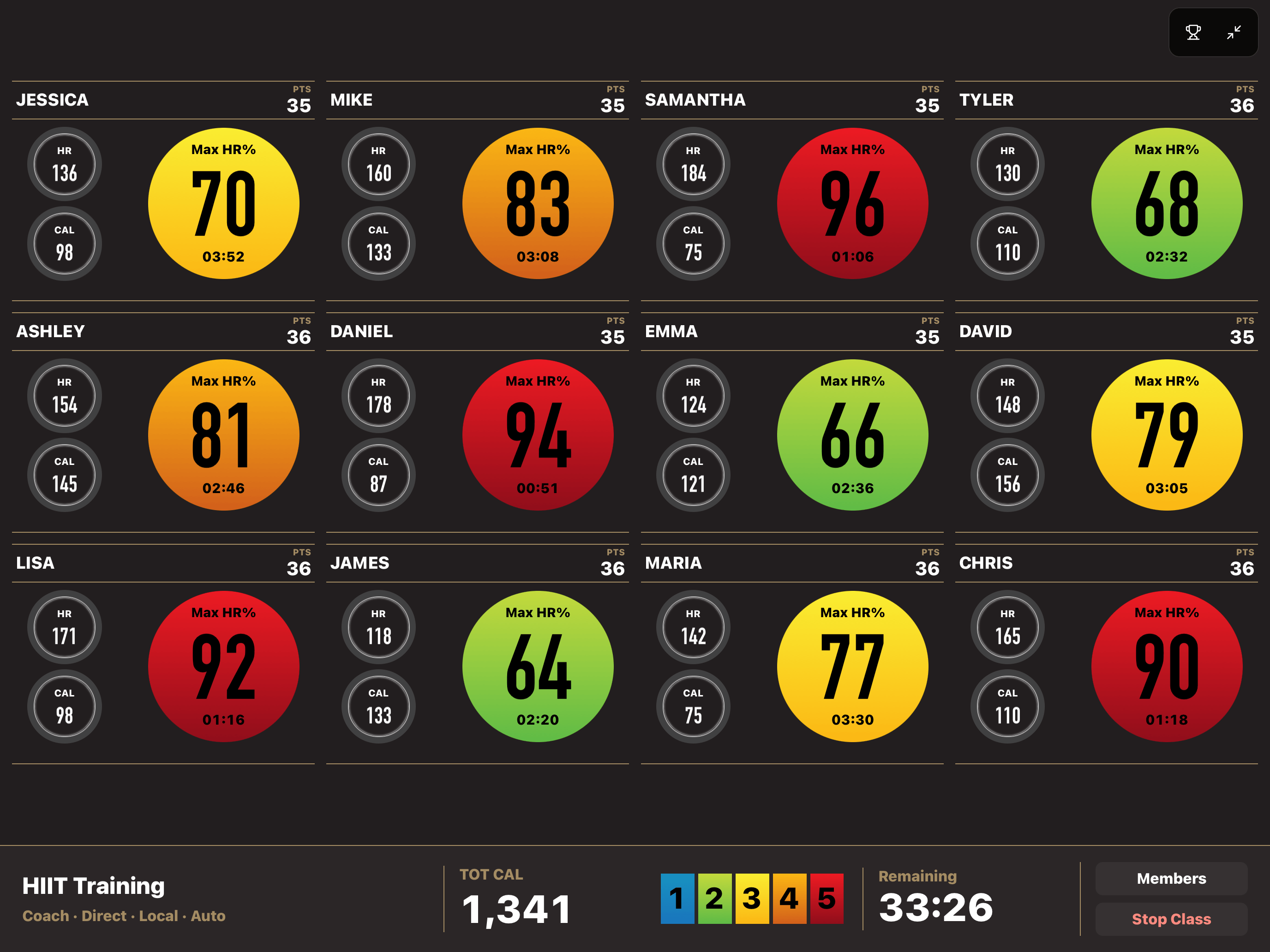
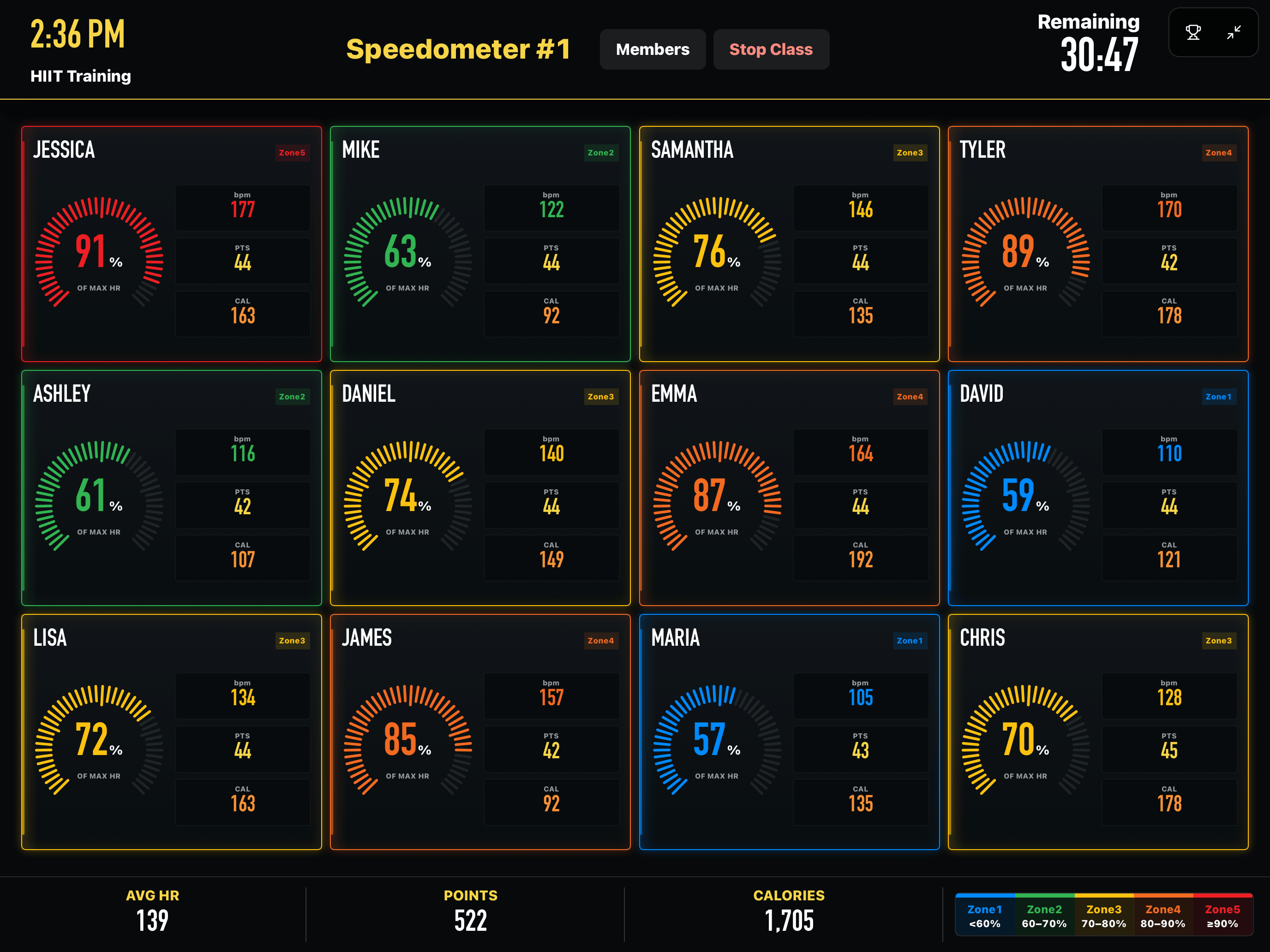
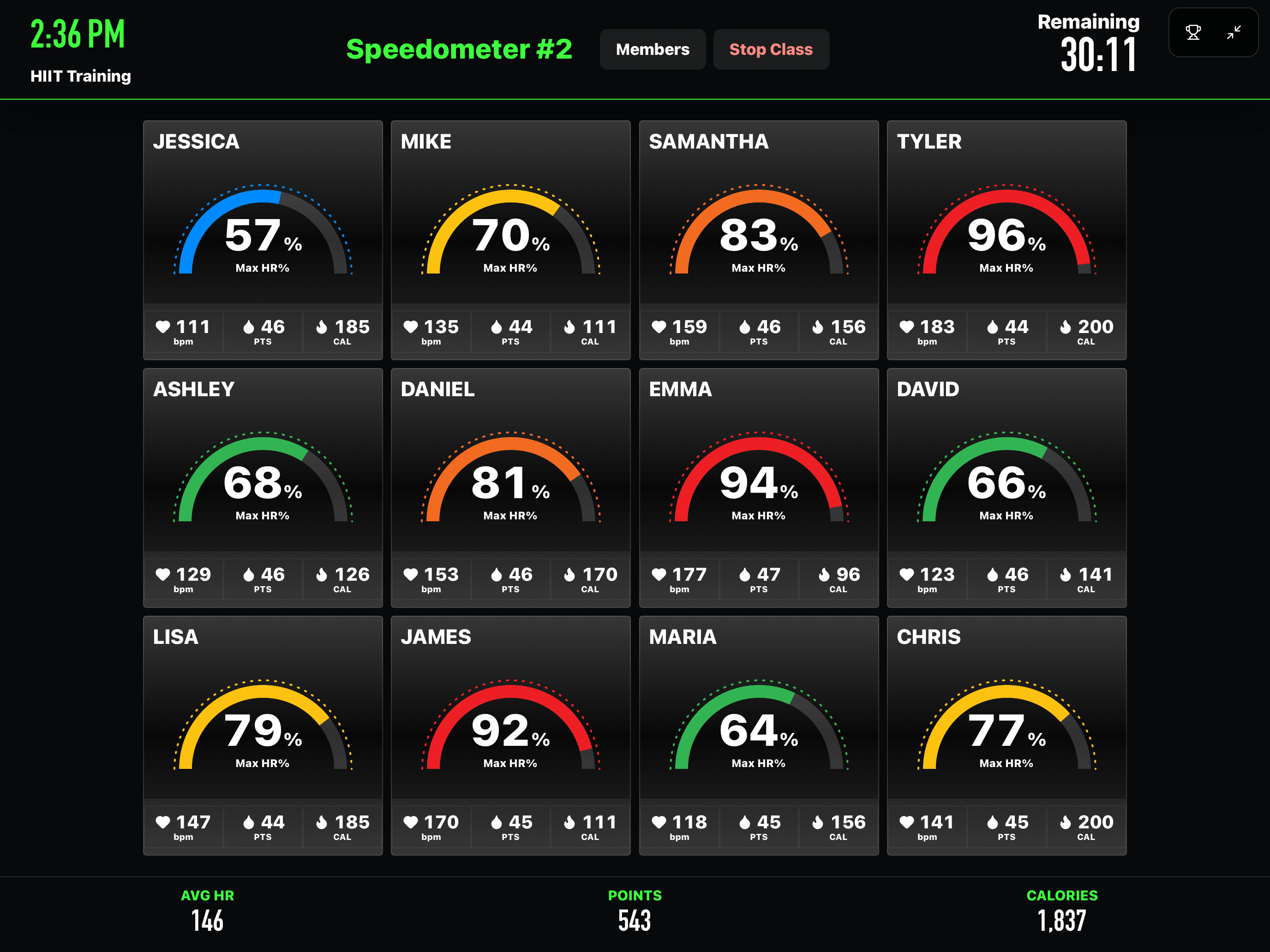
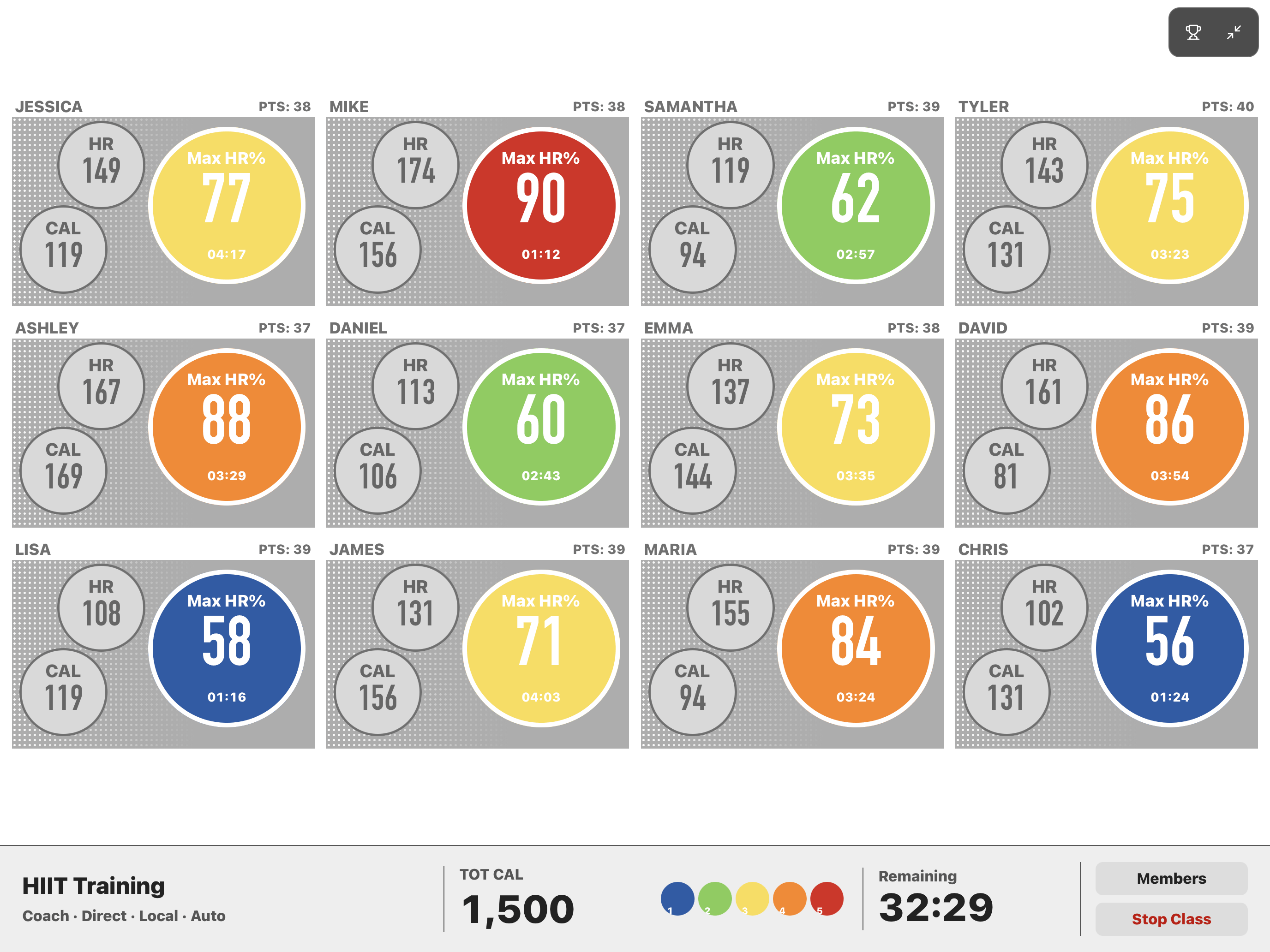
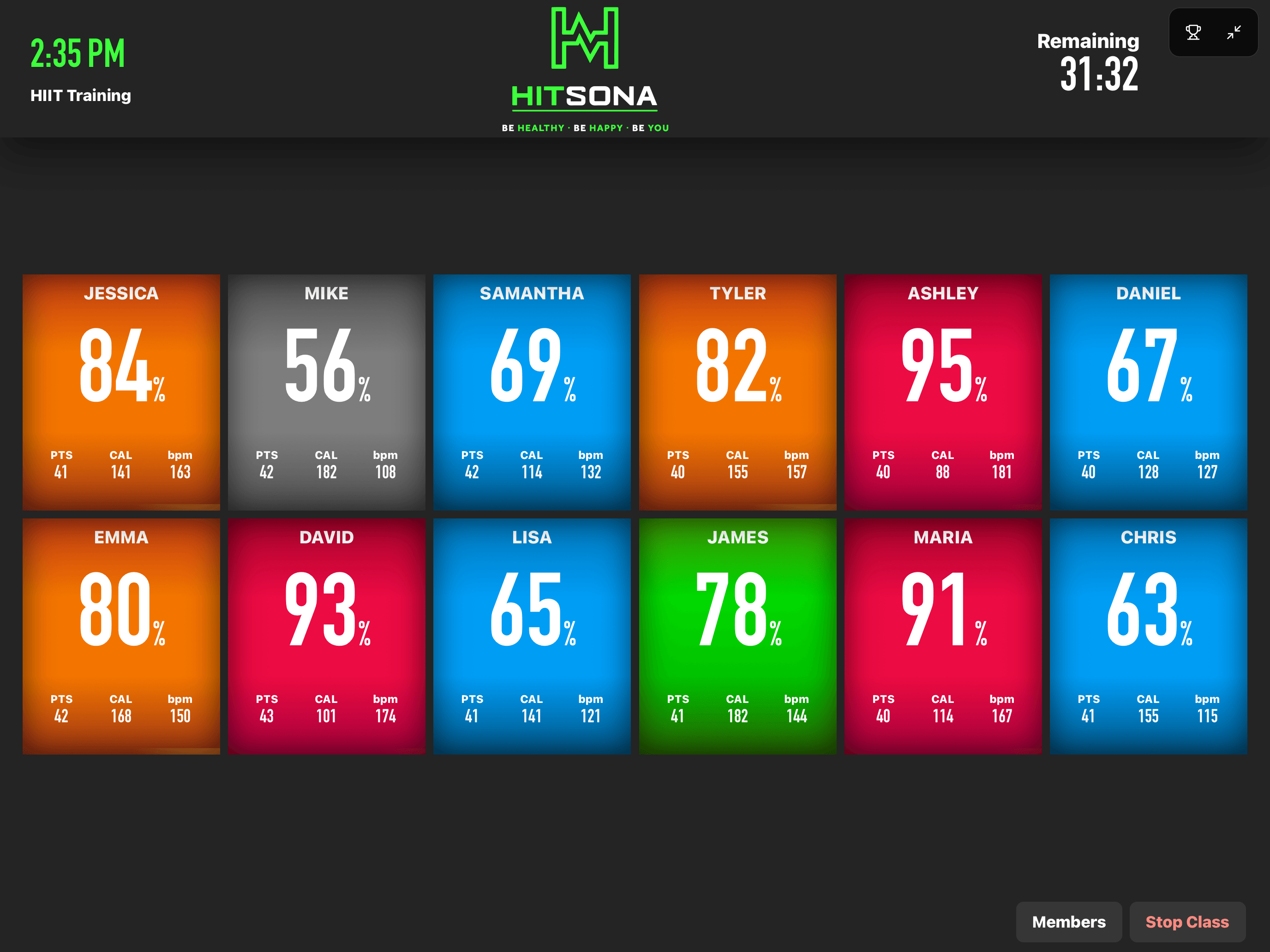
Switch a Station skin in Dashboard
-
Open the correct club workspace as Club Admin or Location Admin. Location Admins can configure Stations within their assigned location.
-
Open Organization & locations → Team → Stations. Find the target Station account and select its Training Skin action.
-
In Available, use Enlarge preview to inspect a skin. Select the skin you want.
-
Scroll to the bottom of the dialog and select Save. Check the saved choice.
-
Keep the iPad online so it receives the update. Start a new session to use the new skin.
The Available tab contains skins you can select. If a skin is in Locked, contact Accuro Support to ask about using it for your club.
Each Station account has its own choice. Selecting a skin for one Station does not change other Stations. Save is disabled when the selection has not changed.
Switch a skin on the iPad Station
-
Sign in to the intended Station account and open Settings.
-
In Appearance, open the Skin dropdown.
-
Choose any available skin. The choice is saved locally and synchronizes with the Station account when connected; there is no separate Save button.
-
Start a new training session after the update is ready.
The dropdown lists skins available to this Station. If Dot or Hitsona is missing, reconnect the iPad and contact Accuro Support if it remains unavailable.
The System, Light, and Dark controls set the app’s appearance. The separate Skin dropdown sets the training presentation.
A pending message such as “Saved on this iPad. Waiting to sync with Dashboard when connected.” means the choice has been kept locally but has not yet synchronized.
Preview and verify the next session
-
On the iPad, tap Preview beside the Skin field to inspect the selected design.
-
Close the preview when finished. A preview does not start a training session.
-
Confirm that your chosen skin is available and saved, then start a new session.
-
Check both the iPad training view and the connected external display.
Dashboard also offers Enlarge preview on skin cards. Preview images help compare designs; they are not confirmation that a live session has changed.
In Dashboard, Saved Skin above the skin cards shows the saved setting. Changes apply to the next training session; a session already in progress keeps its current skin.
A session keeps its skin through training, recovery, results, minimization, reconnection, and resume. Changing the saved choice during a session prepares a future session. In Continuous Mode, that means starting a new session, not waiting for an idle period.
Use a paid skin
To use Dot or Hitsona, contact Accuro Support with your club name and the skin you would like to use. Support can explain availability and pricing.
Once Support confirms that the skin is available for your club, reconnect the Station and select it using the Dashboard or iPad steps above. You still choose the skin separately for each Station; your saved choices do not change automatically.
If a paid skin is locked or becomes unavailable, contact Accuro Support. You can continue training with any available free skin.
Synchronization and troubleshooting
Dashboard and the iPad use the same Station account preference. Keep the app online and allow its next refresh, normally about 30 seconds while online. A pending local choice must finish synchronizing before Dashboard can show it consistently.
| What you see | What to check |
|---|---|
| Paid skin is locked or missing | Reconnect the iPad. If the skin remains unavailable, contact Accuro Support with your club name and the skin you want to use. |
| Skin changes on one Station only | Selections are per Station account. Configure other Stations separately. |
| Saved choice differs between screens | Confirm the same Station account. Reconnect the iPad and wait for its pending synchronization to complete. |
| Current training still uses the old skin | Expected: the new choice applies to the next new session, including in Continuous Mode. |
| Next in Dashboard and Default on iPad | These names refer to the same free skin. |
| A new session uses the default skin | Check whether your saved skin is still available and supported by the app. Reconnect the iPad, and contact Accuro Support if a paid skin remains unavailable. |
If a paid skin becomes unavailable, a session already in progress keeps its current design. The next session may use Next or Default so training can continue. Your saved choice is retained.
Before using a paid skin offline, connect the iPad and check that the skin is available. If it becomes unavailable while offline, reconnect or choose a free skin.