
Manage members
Find, create, and maintain member profiles and Location assignments in Dashboard.
This guide is for Club Admins and Location Admins using Dashboard. The members, Locations, and actions you can see depend on your assigned access.
Find a member
- Open your club workspace in Dashboard.
- Under Members & training, choose Members.
- Search by name, nickname, or email. Use the Location filter when available.
- Open the member's name to view their profile and training information, or choose Edit member to update their details.
Check the email before editing a record, especially when members have similar names. If someone has only submitted a registration request, look in Pending registrations instead.
Add a member
Self-service registration through Member App lets members choose their password and verify their email. If you need to create the profile from Dashboard:
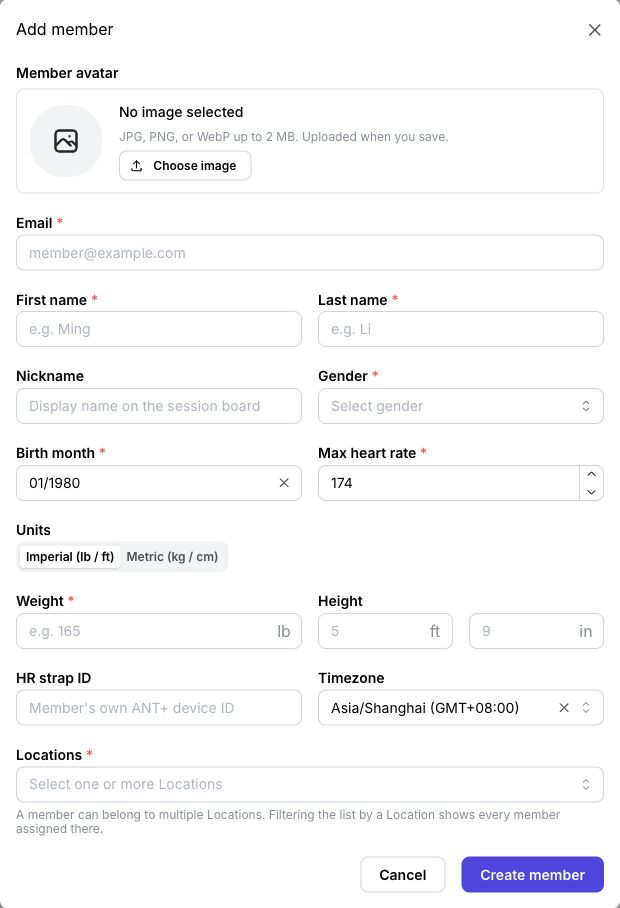
- Open Members → Add member.
- Enter the member's email, name, and the required profile fields.
- Confirm birth month, gender, maximum heart rate, and weight. Check the units before entering measurements.
- Review the time zone and assigned Locations. Complete any optional photo, nickname, height, or HR strap information you need.
- Choose Create member. Wait for confirmation and check the saved record.
Creating a profile is not a password change. If the email is already associated with an account, follow the message shown; do not create duplicate records to work around an account or verification problem.
Edit a profile
Open the member and choose Edit member. Update the relevant fields, then save and check the result. The email field is read-only when editing; contact Support if the account email needs attention.
A photo is uploaded when the form is saved. If a new member was created but the photo upload failed, open that saved member and retry the photo rather than creating the member again.
Manage Location assignments
A member can belong to multiple Locations. The list's Location filter only changes which records you see; it does not add or remove access.
Club Admins can review and update assignments in Edit member → Locations. Keep every Location the member still needs selected before saving. Location Admins work within their assigned Location and may see the assignments locked; ask a Club Admin to make changes that require broader access.
If +N other locations appears, those assignments are outside your current view. Do not treat them as missing Locations or remove them while correcting a profile.
Help a member sign in
First direct the member to Forgot password? in Member App so they can recover access through their own email.
If staff-assisted reset is appropriate and your account offers Reset password, open the correct member's detail page, confirm their identity, and follow the reset dialog. Check the target name and email, enter and confirm the new password, and submit only when you intend to change that account's password. Follow the success or error message shown; a reset does not grant additional Location access.
If the reset is unavailable or refused, use the member's self-service recovery flow or contact Support. Do not change another profile to get around the restriction.
Quick checks
| Problem | What to check |
|---|---|
| Member is not in the list | Search by email, check the Location filter, then check Pending registrations. |
| Member is visible but a class is missing | Confirm Location assignments and that the class is published. |
| Measurements look wrong | Check Metric versus Imperial and review the saved values. |
| An action is unavailable | Confirm your role and Location scope with the Club Admin. |