
Dashboard for Members
Use Dashboard with your Member role to manage your own training and account.
Open Accuro Dashboard in your browser and sign in with your existing Accuro account. The Member workspace gives you access to your own workouts, bookings, progress, and profile.
Open your Member workspace
- Sign in using your account's existing sign-in method.
- If you have several role assignments, use Switch active role in the account menu and choose Member for the club you want to use.
- Look for the personal navigation: My overview, Workout history, Growth, Rewards, Classes, Challenges, and Profile & settings.
If the Member role or expected club is unavailable, contact your club to check your membership. A role switch uses access you already have; it does not create a new membership or add Locations.
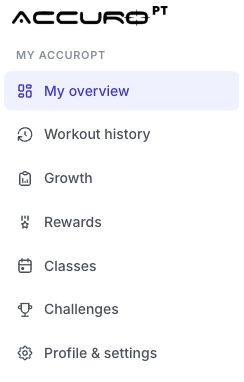
Find your way around
| Page | What you can do |
|---|---|
| My overview | See your current level, training scores, and recent workouts. |
| Workout history | Browse your own class and personal workouts and open their details. |
| Growth | Review consistency, effort and progress, badges, and level history. |
| Rewards | View available rewards, points activity, and redemptions by Location. |
| Classes | Find classes, manage bookings and waiting-list entries, and review booking history. |
| Challenges | Explore available challenges, follow participation and progress, and view leaderboards. |
| Profile & settings | Edit your own information, choose optional emails, and open account security. |
Feature availability depends on your club and Location access. Follow any availability message shown on the page.
Review your workouts
Open Workout history, find the workout by date and name, then open its details. Use the page controls to browse older records. The list includes class and personal workouts; personal workouts do not contribute to level, growth, challenges, or reward points.
Open Growth for trends and level history. A collecting or unavailable score is not a score of zero. For help with incomplete results or missing summaries, see workout results.
Find and book a class
- Open Classes → Find classes.
- Choose From and To dates, up to 31 days apart, and a Location if needed.
- Open View details and check the time, Location, availability, and any booking restriction. Times are shown in that Location's time zone.
- Choose Book class or Join waitlist, depending on the available action.
- Check the updated booking status in My bookings. A waiting-list position is not a confirmed place.
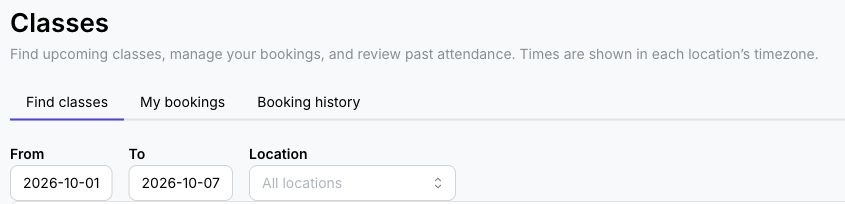
To withdraw, open My bookings, choose Cancel booking or Leave waitlist, and confirm. Releasing a place may give it to another member. Use Booking history to review past bookings and attendance outcomes.
If an action fails, check the latest availability and the message shown before trying again. A class that has started, a booking conflict, or missing Location access can prevent booking.
Edit your own profile
- Open Profile & settings → Edit profile.
- Review your name, nickname, birth month, gender, and training information.
- Check measurement units, height, weight, maximum heart rate, and time zone. Add or change your photo if needed.
- Choose Save and wait for confirmation.
Your account email is read-only in this form. Contact Support if it needs attention. Your club manages membership and Location assignments; editing a profile does not change those permissions.
Choose optional email notifications
In Profile & settings → Email notifications, choose whether to receive Post-workout summaries and Progress and engagement reminders. Each switch saves its change immediately; wait for the confirmation before leaving the page.
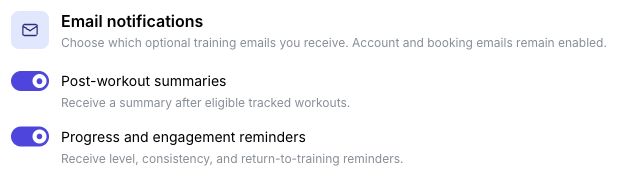
Account and booking emails remain enabled. Turning on summaries does not create a result for a workout that has not finished uploading or processing.
Manage account security
From Profile & settings, open Account security to manage your password, connected sign-in methods, and active sessions. These settings belong to your Accuro account and can affect access across Accuro products. Follow the confirmation steps shown for sensitive changes.
If you cannot sign in, use the password-recovery option on the sign-in screen. If sign-in succeeds but a class or Location is missing, contact your club with the Location, date, and message shown.
Connect with your club and other apps
Use Messaging in Member App to contact the club; the Dashboard Member workspace does not include that inbox. In Profile & settings, open AI connections to authorize read-only access to your own training data. For phone notifications and health exports, see Notifications & health sync.